Overview
With advanced insights, Admins can quickly understand the health of their organization, teams, and individual users. The dashboard brings together key signals like sentiment analysis, conversation resolution rate, and opt-out rates, so you can see how effective conversations are today, and where to focus to make future conversations even stronger.
Navigation
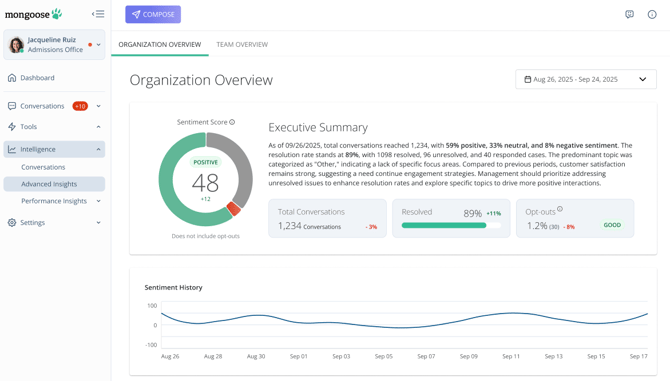
If your organization has Advanced Insights, you will be able to navigate to this feature by going to Intelligence > Advanced Insights. Your default view will be the organization overview, which is all of the data collected from all of the teams that you're an Admin of. If you'd like to view a specific team's Insights, you can select Team Overview at the top of the page.

On both views, you can adjust the reporting window using the date range drop downs at the top right to focus in on specific periods of time.
Understanding the Dashboard Cards and Charts
Sentiment Score
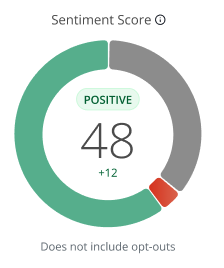
The sentiment score gives you a clear snapshot of how contacts are feeling overall. The current score appears in the center and just beneath it, you'll see a positive or negative value showing how that score changed compared to the previous period. In this example, the organization's sentiment score is 48, up 12 points from the previous time range.
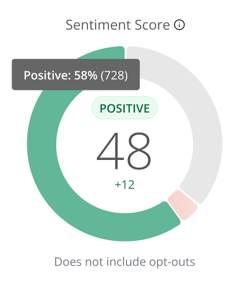
Hover over each section of the sentiment chart to see a breakdown of positive, neutral, and negative conversations. This makes it easy to spot patterns and helps teams understand how their messaging may be impacting the people they're engaging with.
Executive Summary
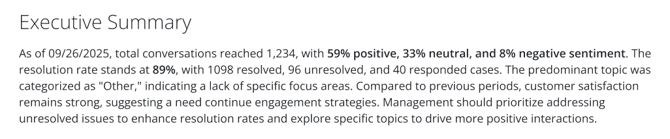
To the right of the sentiment score, you will find an AI-generated executive summary, which gives a bite-sized overview of the organization. This summary updates based on your selected date range and provides a great way to share key information with leadership on how effective the organization has been. The AI analyzes sentiment distribution, resolution rates, opt-out rates and comparison trends to give you the story behind the numbers.
Total Conversations
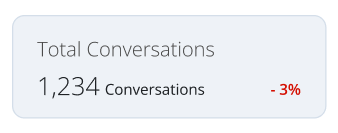
Next, you'll see the total number of conversations within the selected period along with a comparison showing whether volume has increased or declined (in the example above, the comparison is -3%). This helps you track overall engagement and identify shifts in activity over time.
Conversation Resolution Rate
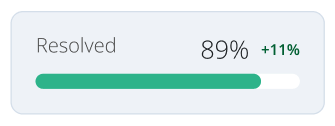
To the right, you'll find the conversation resolution rate, the percentage of conversations marked resolved. This is a direct indicator of how effective conversations are across your organization and how consistently teams are reaching real outcomes.
Opt-Out Rate
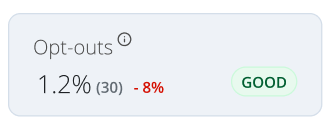
Finally, there's the opt-out rate. Here, you can see the overall opt-out percentage along with a clear label indicating whether that number is trending in a healthy or concerning direction. Like the other cards, this section includes a comparison value so you can track improvement over time (in the example above, the comparison is -8%).
Sentiment History Chart
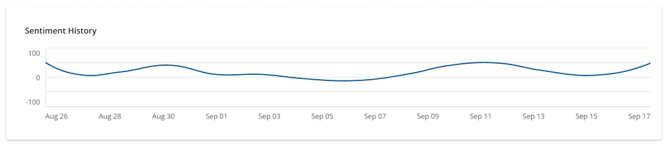
To better understand changes in sentiment, the sentiment history chart tracks your sentiment score over time, making it easy to see progress, dips, and trend lines at a glance.
Conversation Sentiment Over Time
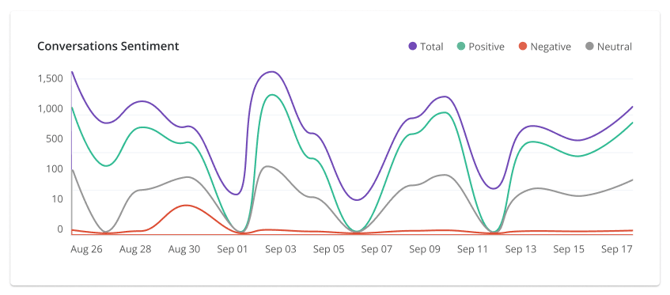
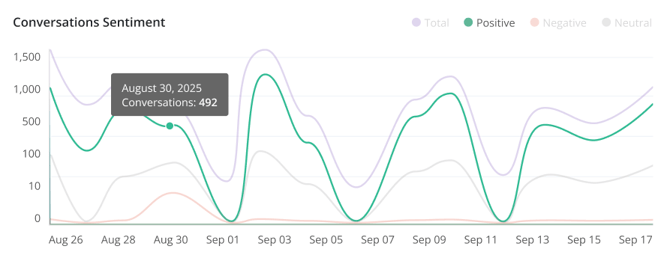
As you move down the page, you can explore sentiment in more detail with the conversation sentiment over time view. This shows when conversations skewed positive versus negative on specific days, helping you pinpoint when conversations were most effective and what might have influenced those results.
Conversation Emotion Pie Chart
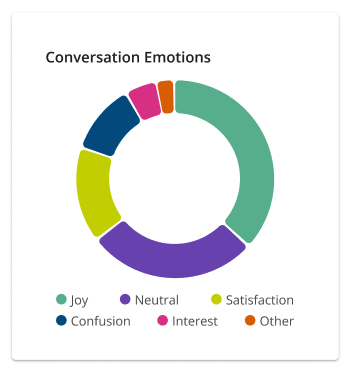
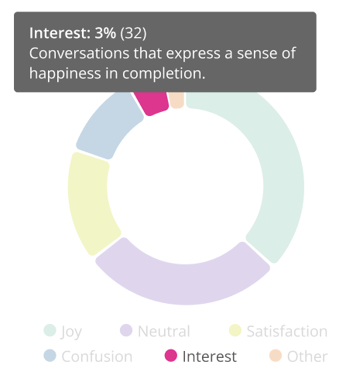
Going deeper, the conversation emotion pie chart breaks conversations into specific emotion categories like joy, satisfaction, and confusion. This chart allows you to see why contacts may be responding the way they are.
Interacting with Charts and Data
All charts in the Advanced Insights dashboard are interactive. Hover over any data point to see detailed breakdowns and exact values. Use the data range filter at the top right to focus on specific time periods. All metrics and charts update automatically. Charts will display data for your selected date range.
Team-by-Team Breakdown
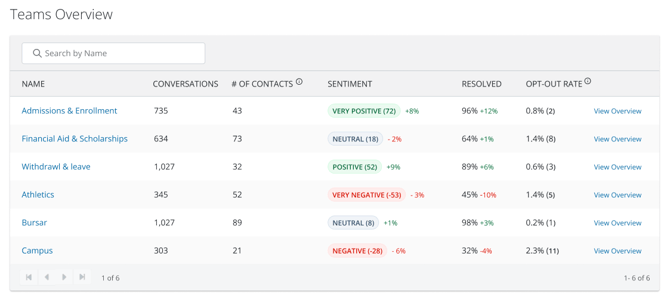
At the bottom of the page, you can review a complete team by team breakdown, including everything needed to identify which teams are thriving and which teams may need coaching or support. In this section, when you click on a team name, you’ll be led to the team overview, where you can see team insights, and staff member details.
Admins will be able to see each staff member’s sentiment score, conversation volume, resolution rate, and opt-out rate. Users will be able to view their own. This makes it easy to identify top-performers you can learn from and staff members who may benefit from coaching.
To return to the previous view, click on the “Organization Overview” tab or the “back” arrow in your browser to return to the previous view.
Understanding Comparison Values
Throughout the dashboard, you’ll see percentage changes (like +12% or -3%), and sometimes changes in count (+5, or -6), like for the sentiment score. These changes compare your selected date range to the previous equivalent period. For example: Viewing the last 30 days? Comparison is vs. the 30 days before that. This helps you track whether trends are improving or declining over time.