
Open Inbox Assistant settings
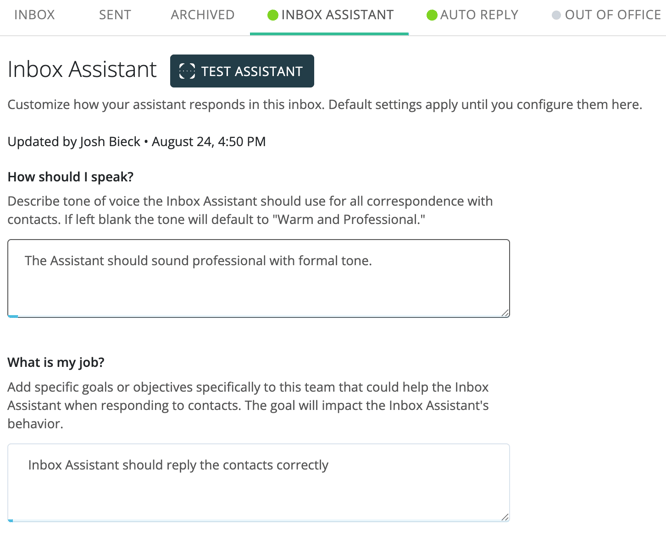
Set goals and response guidance
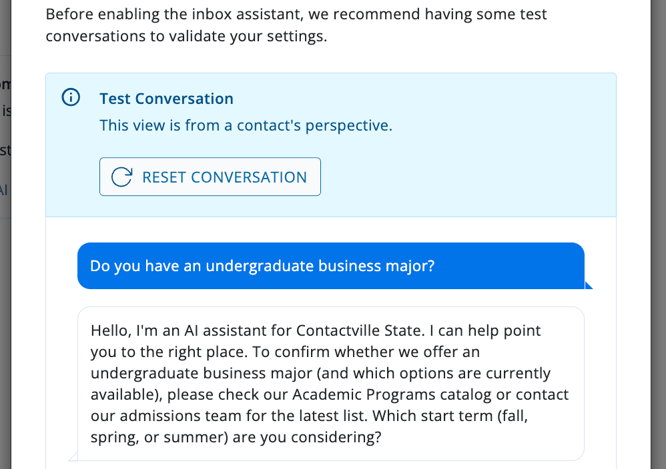
- Open Conversations.
- Select the personal or shared inbox you want to configure.
- Select the Inbox Assistant Tab
- Review the current status and configuration sections.
Set goals and response guidance
Use the guidance fields to describe the outcomes Inbox Assistant should support and the communication style it should use. Be specific about the inbox's audience, purpose, and boundaries.
- How should I speak? - Describe the voice Inbox Assistant should use. If you leave this field blank, the proposed default is Warm and Professional.
- Ex: Use a warm, professional tone that is clear, welcoming, and easy to understand. Keep responses concise and conversational, avoiding technical jargon whenever possible.
- What is my job? - Describe what the inbox helps contacts accomplish and when the Inbox Assistant should direct them to staff. Include important boundaries, such as topics Inbox Assistant should not advise on or promises it should not make.
- Ex: Help contacts find general information, understand next steps, and access the appropriate resources. Direct contacts to a staff member when they need personalized assistance, account-specific information, or advice the Inbox Assistant is not qualified to provide. Do not make guarantees or promises on behalf of the institution.
Knowledge sources give Inbox Assistant institution-approved information to use when answering questions. Add only current, relevant sources that directly support the purpose of the inbox.
- In the knowledge section, select Manage or Add Sources.
- Choose whether to add a website or upload a document.
- For a website, enter the source URL and confirm its display name.
- Websites are crawled and updated weekly on Sunday nights.
- For a document, select the supported file and upload it.
- Documents are only crawled once at the time of upload.
- If attempting to upload a document of the same name, a prompt to replace or cancel will appear.
- Review the source list and wait until each source is ready before testing.
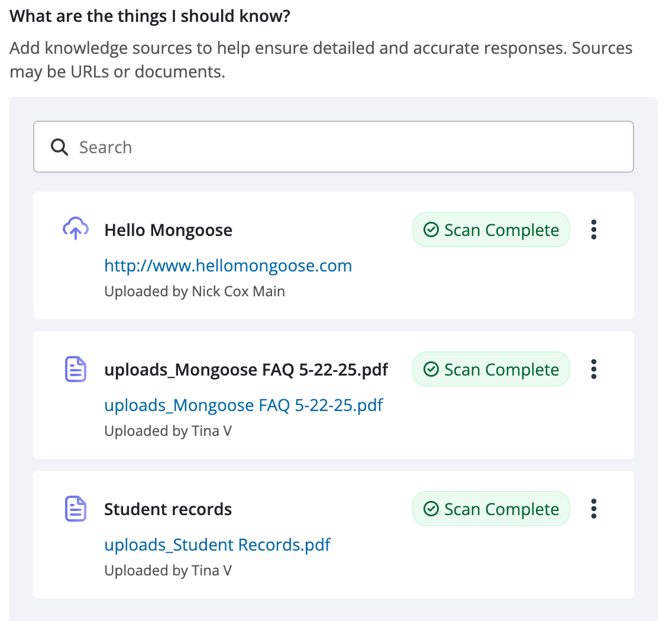
Manage knowledge sources
- Edit a website source when its display name or address changes.
- Remove sources that are outdated or no longer relevant.
- Review processing statuses after adding or changing a source.
- Retest common questions after significant source changes.
- Respond to messages. Allow Inbox Assistant to send automated responses using the configured guidance and knowledge.
- Response schedule. Choose the days and times when automated responses may be sent.
- Auto-archive. Allow Inbox Assistant to archive conversations that have reached a natural conclusion.
When scheduled responses are enabled, define when Inbox Assistant may respond for each day. Outside those hours, it does not send automated responses, but other enabled inbox-management actions may continue.
Save and test your configuration- Review the goals, response guidance, knowledge sources, actions, and schedule.
- Select Save.
- Open the test experience.
- Enter a realistic question your contacts commonly ask.
- Review the response for accuracy, tone, and appropriate escalation behavior.
- Update the configuration or sources as needed, then test again.