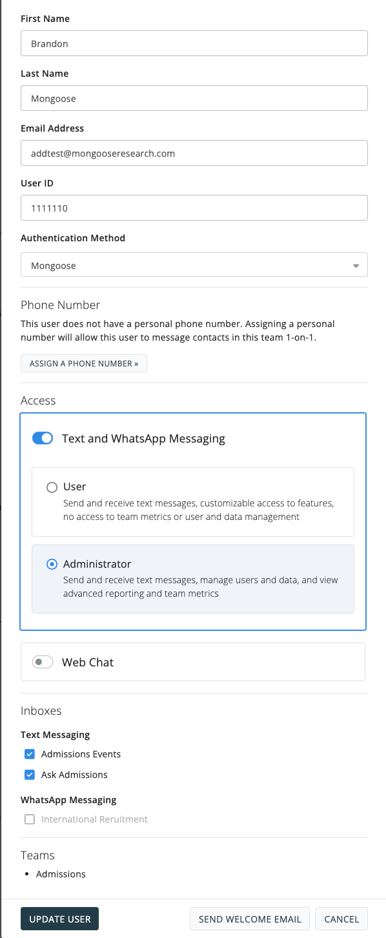
Considerations When Updating a User
There are three main reasons to edit the information for an existing user within Mongoose:
1. Update Details
The name, email, and forwarding number (if using a virtual number) for an existing account can be updated at any time.
If a user's email address is changed, this will also impact their username for logging into Mongoose. Be careful of making changes to email addresses particularly if your institution is utilizing single sign-on (SSO).
2. Update Access
The level of access that a user has can be changed at any time. If you are an Admin user, you are able to grant/remove administrative access to other users within your team(s).
3. Transfer Account
If you are looking to transfer ownership of a user account to another user but retain the phone number and all of the message activity between that phone number and contacts, editing the existing user account is the simplest way to accomplish this.
Update the User ID, First Name, Last Name, and Email Address for the new user and then click [Update User]. Click the dots to the right to edit the user again and click [Send Welcome Email] to notify the new user (this gives them an opportunity to set their password). When they log in, they will have access to the same phone number, contacts, and conversations as the previous user.
Note: If the intent is for the new user to have a new texting phone number and a clean inbox, the existing user should be deleted and a new user created instead.
Edit an Existing User
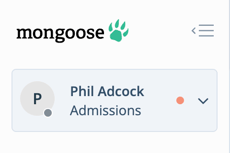
1. If you have access to multiple teams, you'll first want to make sure that you are in the correct team. Click the down arrow next to your name at the top left:
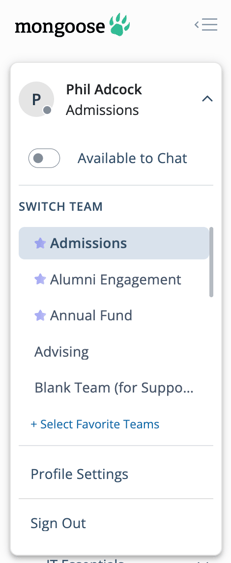
2. Once the dropdown opens, select the appropriate team (if applicable).
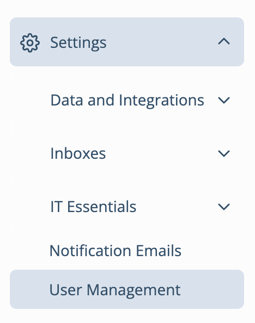
3. Navigate to Settings > User Management.
4. Locate the user you would like to edit, click the dots to the right of the account, and select Edit.
5. Update the details and click [ Update User]