
Recognize Inbox Assistant activity
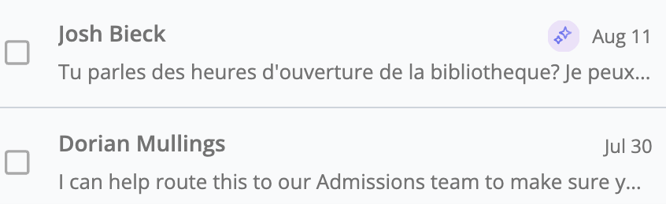
Inbox Assistant messages are identified separately from messages sent by staff with a purple star icon next to the date. Open a conversation to review the assistant's responses and the controls available for each response.
When the Inbox Assistant introduces itself
The Inbox Assistant introduces itself at the start of every new conversation. A conversation counts as new when:
- It’s the first exchange between the inbox and the contact.
- 21 days have passed since the last exchange of messages.
- The conversation has reached the maximum of 12 messages sent by the inbox assistant.
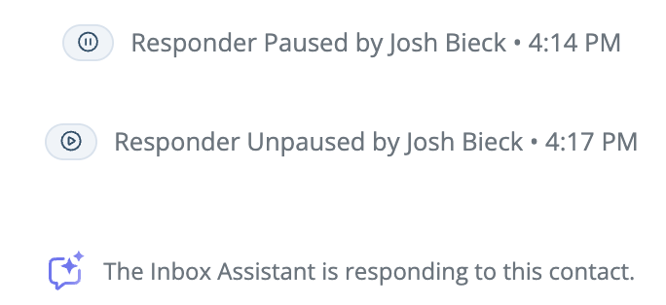
- The conversation is resumed after being paused.
If a contact sees the introduction more than once, it means one of these happened. It isn’t an error.
Reply as a staff member
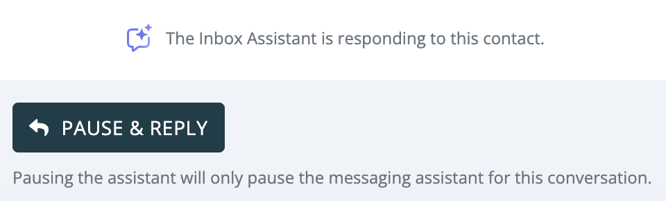
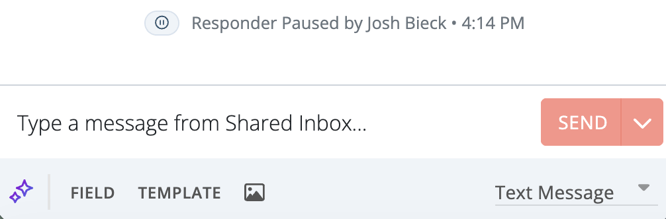
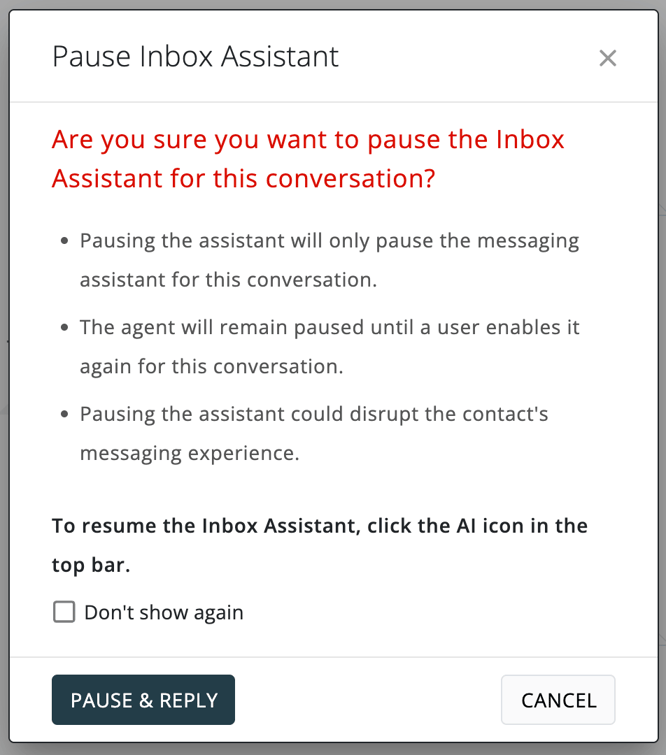
When a conversation needs a personal response, pause Inbox Assistant before replying. Pausing prevents automated responses in that conversation while staff take over.
- Open the conversation.
- Select the Inbox Assistant control in the conversation header or reply area.
- Choose Pause, or use Pause and Reply if that option is available.
- Enter and send your response.
A paused conversation remains paused until a user resumes it. A list of conversations that have been paused can be viewed using the inbox filter option. A response schedule does not automatically resume an individually paused conversation.
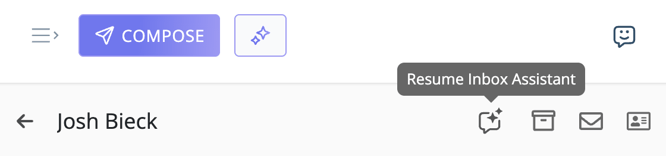
Resume Inbox Assistant
- Open the paused conversation.
- Select the paused Inbox Assistant control.
- Choose Resume or Unpause.
- Confirm that the active indicator returns when the inbox is within its configured response hours.
Note: Resuming a paused conversation starts a new conversation, so the Inbox Assistant will introduce itself again in its next reply.
Provide feedback on a response
Feedback helps Mongoose identify responses that worked well and responses that need improvement.
- Locate the Inbox Assistant response you want to review.
- Select the thumbs-up icon for a helpful response or the thumbs-down icon for an unhelpful response.
- If prompted, describe what Inbox Assistant should have said or done differently.
- Submit your feedback.
Other Automated Messages
- When Auto Reply and Smart Messages are configured, those messages will be sent first, then the agent will respond to any of the contact's messages afterwards.
- Out of Office responses are disabled when the Inbox Assistant’s respond toggle is on.