
Note:
Salesforce is transitioning from Connected Apps to External Client Apps for new integrations. If you've previously configured a Connected App for Mongoose Chat, the setup process may look different. The primary difference is that OAuth settings, access policies, and credentials are managed through the External Client App framework rather than a traditional Connected App.
Overview
For clients using Mongoose Chat, an integration between Mongoose and Salesforce (or a Salesforce-based application such as TargetX or JRM) can be configured to automate Chat Bot conversations and data in the form of exports from Mongoose back to Salesforce. Mongoose will work directly with you for this configuration.
While individual settings may vary, the process for automating this one direction integration is:
- One-time setup for authentication between Mongoose and Salesforce
- Setting up any additional fields of information you want to capture (within the chat bot)
- Exporting chat conversation data back into Salesforce
Before You Start
There are a few items to consider before you begin configuring the integration:
- Knowledge of Salesforce and familiarity with configuring Salesforce API users is strongly recommended. If you are unfamiliar with the Salesforce API, we suggest involving one of your organization's technical resources or developers before beginning.
- This integration allows you to export chat bot data into Salesforce from Mongoose.
- Data exports essentially function as a create and/or update process. Contact data collected from the chat bot will either create a new contact record in Salesforce or update an existing one.
- This integration must be enabled by Mongoose so please reach out to support@hellomongoose.com or your client success manager to get this enabled.
Chat Integration Setup Process
- First you'll need to Create an External App in Salesforce
- Then, establish which Salesforce API user will be leveraged for the integration
- Note: If you already set up an integration for text, we can re-use the same External App and API user
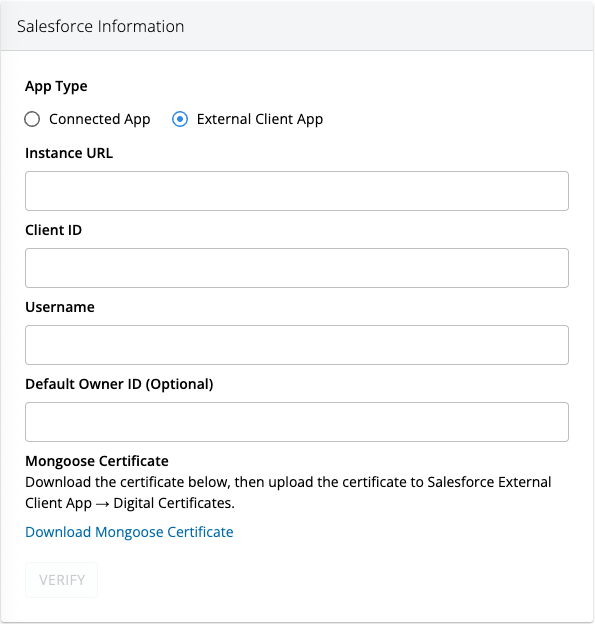
In Mongoose, on the left side navigation click on your admin drop down "Team Name">Salesforce Chat
- The following information will be needed to authenticate:
- Instance URL: (the URL must contain ".salesforce.com" or ".my.salesforce.com") and should be something like "https://school.my. salesforce.com"; do not use https://login.salesforce.com).
- Client ID
- Username: Salesforce API User Username
- Default Owner ID
- User Assignment
- Select which individual to associate to a chat conversation task - Salesforce default contact owner or Mongoose user
Export
- Custom Fields: Custom information that is captured during the chat conversation will appear in the chat transcript. Any custom fields that were configured to collect visitor information will appear in Export Settings. If you wish to extract that data into custom fields you can do so by adding Fields to the Contact Object in Salesforce and map them here.
- Field name will look something like this:
Mongoose___Student_Type___c.- An example of a field you may want to create would be if you wish to capture Visitor Type or Student Type.
- Field name will look something like this:
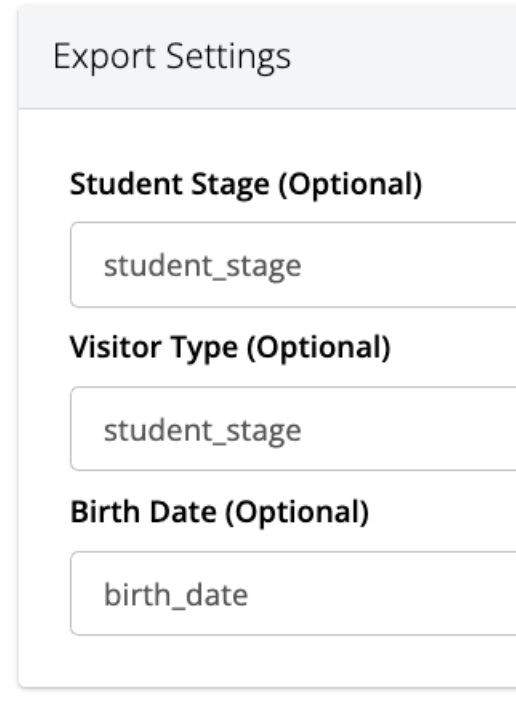
Be sure to click "Save" at the bottom of the page.
How Chat Integration Works
When Mongoose Chat collects enough information about a Contact (Email Address, Phone, Name), the information will be pushed to Salesforce when the conversation is closed.
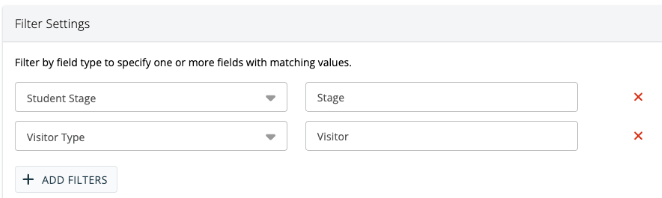
Note: By default Salesforce requires First Name, Last Name and Email Address to be able to create a contact record. Export filters can be set up on Mongoose side if you require additional criteria for Salesforce to create the record. For example: within a conversation, if Student Type = Future Student, then send conversation to Salesforce. This is particularly helpful if not all conversations should be sent to or created in Salesforce.
Our integration queries Salesforce to determine whether or not a contact already exists in the system. If a Contact does not exist in the system, it will be created.

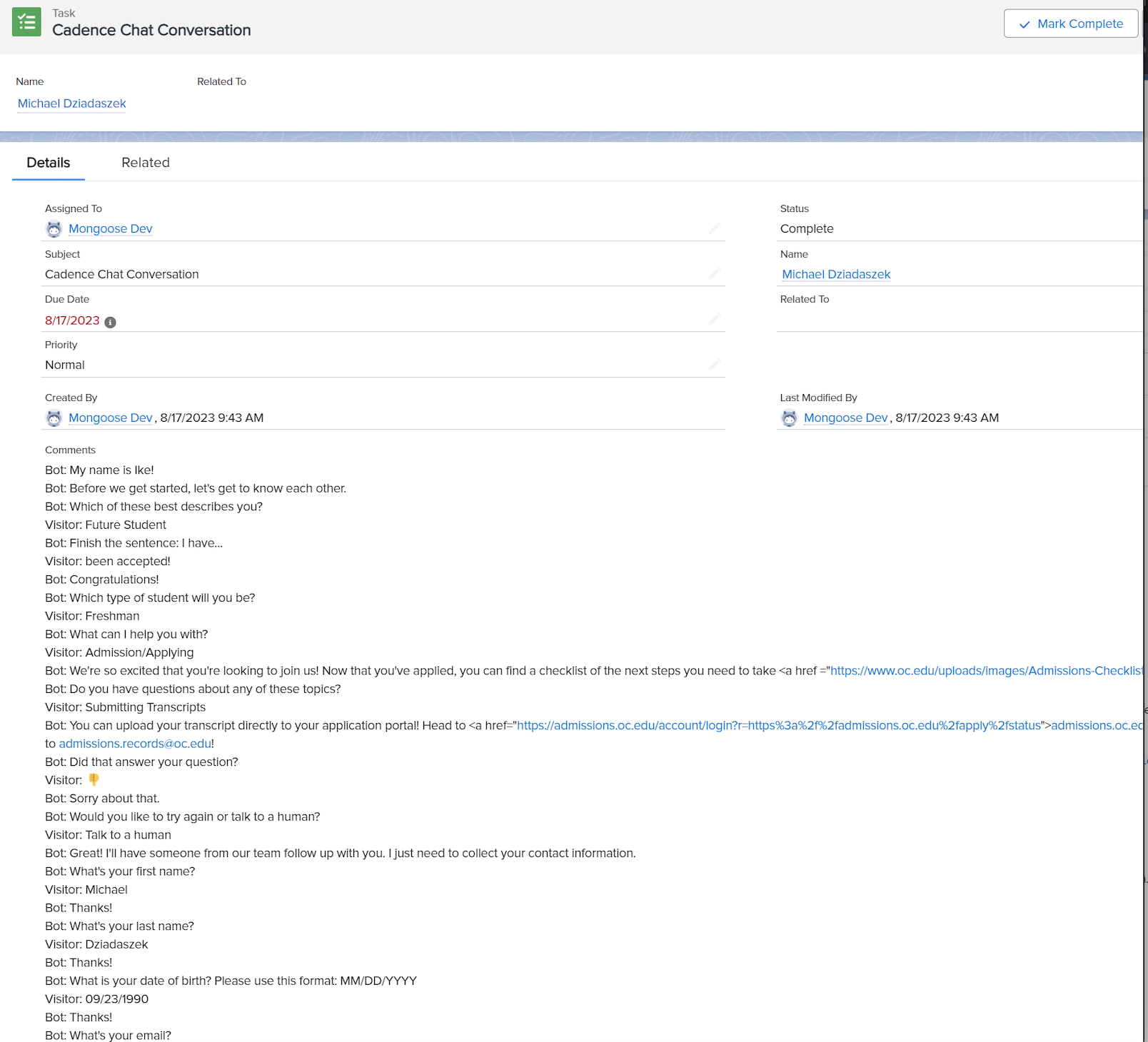
A Task containing the Chat Conversation transcript is then associated with that entity.
If you are using Mongoose Chat are interested in using the Chat Salesforce Integration--please reach out to your client success lead or implementation specialist.