
Overview
The caretaker function allows users to manage other non-Admin users. Reasons for assigning a caretaker may include a user being out of the office for an extended period of time or temporary user vacancies resulting in unassigned/idle users.
Any user can be assigned as a caretaker, but only Admins can manage the assignment process.
Admins cannot be assigned a caretaker due to the security and access permissions that come with being an Admin.
If you are assigned as a caretaker for another user, your personal user and text messages remain separate from those associated with that user and you will be able to toggle between the users to successfully manage them.
Additionally, you cannot caretake a user who is already a caretaker themselves. If you need to assign a caretaker to someone who is already caretaking, you should remove their caretaking and reassign it to another active user.
This article will cover:
- How to assign a caretaker
- How to caretake a user
- How to remove a caretaker
Assign Caretaker (Admins only)
1. Navigate to the appropriate team (if you have access to multiple teams)
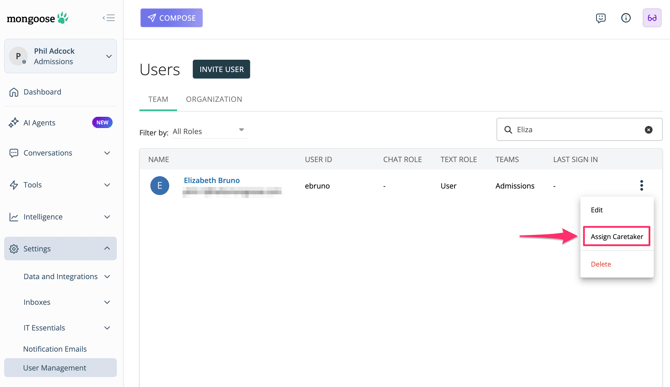
2. Go to Settings > User Management > Find the USER you would like to assign a caretaker to
3. Click the dots to the right of the user and click [ Assign Caretaker ]
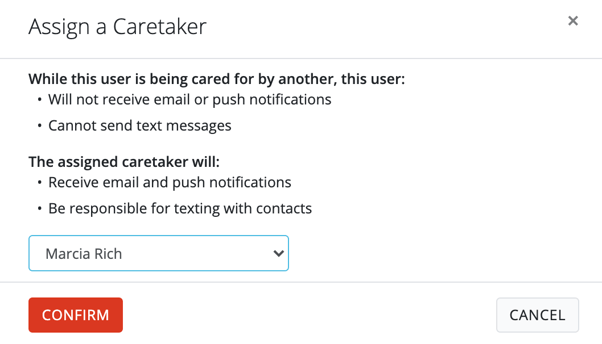
3. Select the name of the user who will manage the user and then click Confirm.
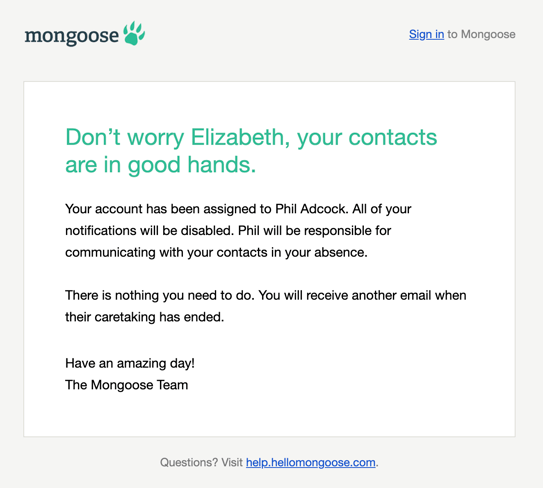
4. When a caretaker is assigned, both the caretaker and the user having his/her user managed are notified via email.
Note: After a caretaker has been assigned, the user having his/her user managed will no longer be able to log into Mongoose and will not receive text "message received" email notifications or push notifications. If the user attempts to log in while a caretaker is assigned, the user will receive a message indicating that someone is managing the user.
Not Able to Assign a Caretaker? Here's a checklist to look through:
-
Admins cannot be assigned a caretaker
- If a user is already assigned a caretaker, you will not see the option to caretake
- If a user only has access to a shared inbox (no personal inbox), you will not see the option to caretake
Managing User (All Users)
1. After you have been assigned as a caretaker, click the arrow next to your name at the top left. This will open the side panel where you will see the option to switch to the profile you are caretaking for
2. Click the name of the person you are caretaking for
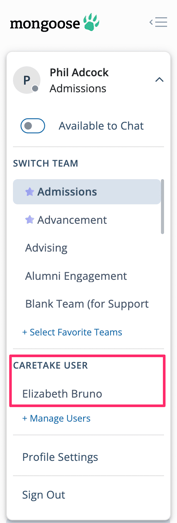
3. You will now have access to the user's experience, including all text messages, teams, and user profile information. A popup will appear that will let you know that you are managing the user. Clicking [ Back to my Account ] will return you to your personal user experience. The user's name will also appear in the left hand corner

4. Text messages can be sent and received as if you are the user. The messages are separate from your own inbox and text messages managed within your personal Mongoose user. You will receive customized email notifications when a text is received by a user you are managing.
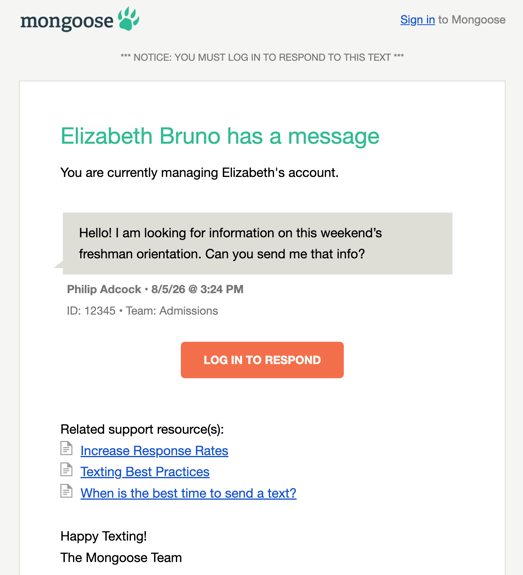
Note: Clicking [ Log in to Respond ] within the "message received" email notification for another user's text message will take you into Mongoose, but you will need to switch to that user and find the text message in order to respond. Your personal "message received" email or push notifications will continue to function as they normally do.
Remove Caretaker (Admins Only)
1. Navigate to the appropriate team (if you have access to multiple teams)
2. Go to Settings > User Management > Find the USER you are caretaking for
3. Click the dots to the right of the user and click [ Remove Caretaker ]
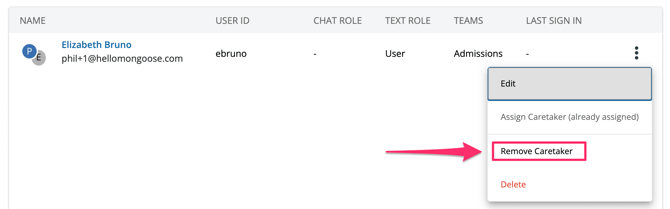
3. The user will now be able to log into Mongoose normally and the caretaker will be removed. Additionally, both the former caretaker and the user will receive an email notification confirming the change.