Before you begin
Mongoose integrates with WhatsApp through your Meta Business Manager. Once completing the signup process embedded within Mongoose, your WhatsApp account will be active within 1-3 business days. Upon activation, you will be notified via your CSM.
During the embedded signup process, an Admin must log in to a Facebook account connected to your institution’s Meta Business Manager. This may be connected to a personal or professional Facebook account login.
Note: Facebook will often block the process for newly created accounts and there may be a waiting period placed on your account from Meta.
Before you begin the process, ensure you have access to the following:
- Admin access to your institution’s Meta Business Manager
- Admin access on your Institution’s Mongoose team
After completing the setup, Admin access can be reduced.
Logging into Facebook
Prior to starting the embedded sign up ensure you have access to your institution’s Meta Business Manager:
-
A Facebook ADMIN should log in to Facebook: via https://business.facebook.com
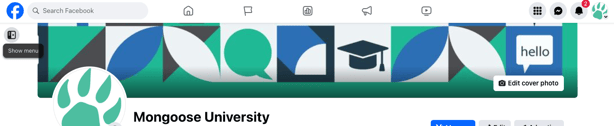
- Toggle to the business page using the avatar in the upper right corner (shown by a paw print).
-
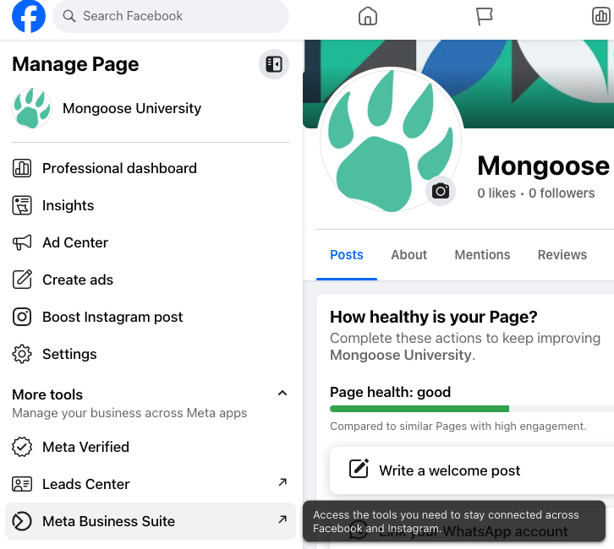
After the business page loads, expand the menu by clicking the “show menu” icon on the left, if the menu is not already shown. 2
- From the side menu, click on Meta Business Suite.
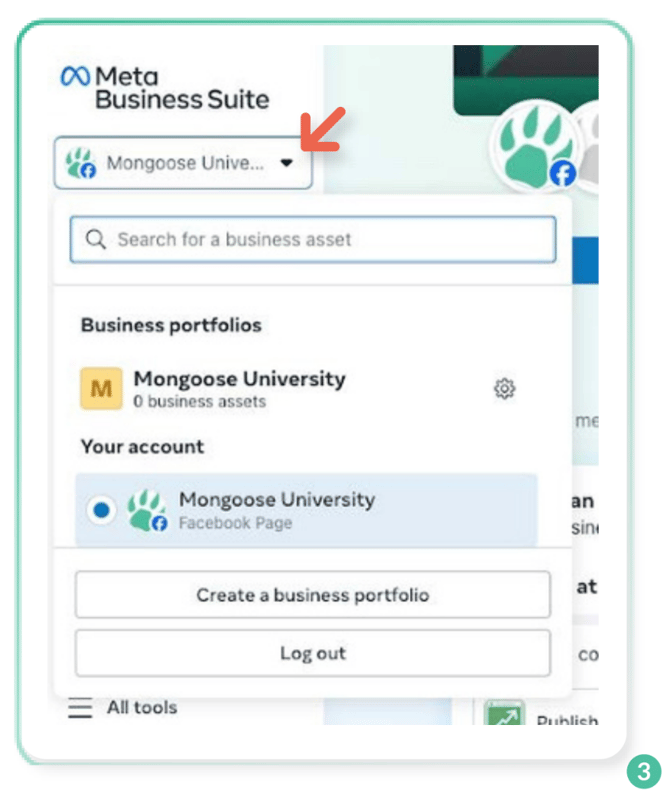
The Business Suite will bring you to a dashboard for the specific Facebook page you have access to.
- From the left menu drop-down, click the down arrow/carrot next to the business name, and click the gear next to the Business Portfolio you would like to link Mongoose and WhatsApp. This will bring you to the Business Portfolio settings.
Meta and Facebook require a Business Portfolio. A business portfolio allows organizations to bring their Facebook Pages, Instagram accounts, ad accounts, product catalogs and other business assets together, to be managed centrally with business tools such as Meta Business Suite and Business Manager.
- This should be at the larger Institution level, and not department or office-specific.
- One institution can have multiple separate Pages, for example Admissions, Student Life, Alumnietc.
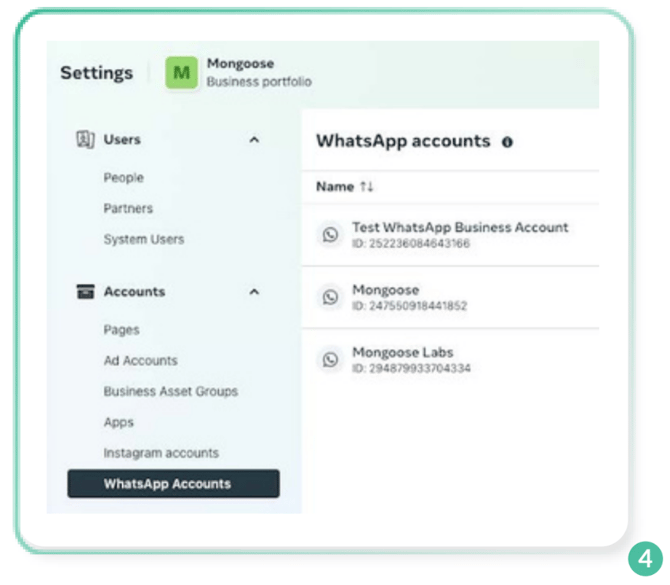
- WhatsApp Accounts or WhatsApp Business Accounts (WABA) - One Business portfolio can have multiple WhatsApp accounts, butideally you should only have one. Each WABA canhave 25 numbers (inboxes) associated with it, andat the moment we can only have one WABA linked per institution.
Mongoose Onboarding & Embedded SignUp
Now that you have access to your Business Portfolio:
- Log into Mongoose.
- From the Side Navigation, click into the Admin Panel and click “WhatsApp”.
- Click “Get Started”.
- Press “Continue with Facebook”.
- Login with your Facebook/Meta login or “Continue” if you are already logged in.
- Meta will connect your Business Portfolio to Mongoose. Any personal login information is not retained by or connected to Mongoose in any way. 6
- Mongoose will need access to either your existing WhatsApp Business account (WABA), or the new WABA that will be created through the onboarding process.
- Click “Get Started”.
- Select your Business Portfolio from the drop-down. We are unable to change the connected Business Portfolio after setup is complete. Complete the remaining fields if blank or incorrect and click Next after completing the form.
- Pick your existing WhatsApp Business account (WABA), or choose to create a new one and click next. 7
- Meta will request that Mongoose can have permission to Manage your WhatsApp Account. Click Continue.
- Once the connection between Mongoose and your Meta Account is successful, the signup will progress to a screen stating you are ready to chat with people on WhatsApp.
- Click Finish.
Next, you will create the WhatsApp Inbox within Mongoose.
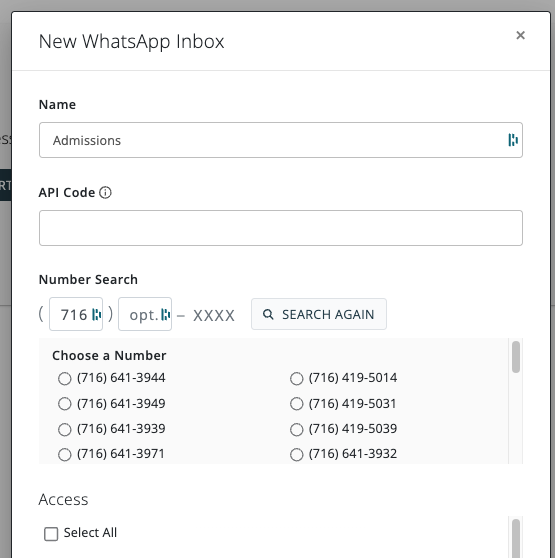
- Name your new WhatsApp Inbox (this can be updated later and is only visible internally).
- API Code is optional and only needed when using Mongoose APIs.
- Select a phone number from the reserved number bank or search for a new number.
- This number will be used to receive WhatsApp messages and could be advertised similarly to your institution’s SMS/text numbers. Your profile will display as your institution's name as a verified entity.
- Assign inbox access to additional Mongoose Users and click “Create”.
The inbox will appear as “pending” within your WhatsApp inbox list. After the number is assigned, Mongoose must complete registration on your behalf. The inbox will be available for messaging in an estimated 1–3 business days. Your CSM will notify you once complete.
While processing, your Meta Business Portfolio will show your existing or newly created WhatsApp account. To get the most benefit:
- Complete the Profile Section within the WhatsApp account.
- From the Business Portfolio, click on Accounts → WhatsApp Accounts → WhatsApp Manager.
- Each number can have a separate profile edited via the “gear” icon → Profile.
- The profile will display to your contacts and should match your intended branding.
Adding Additional Users Within Meta
Meta allows additional users to edit the profile or see Meta-specific insights related to your WhatsApp usage. If necessary, you can add users to Meta.
Note: Users in Mongoose already have access to create templates and send messages. Meta access is not required for additional Admins or Users to use WhatsApp within Mongoose.
From the Business Portfolio settings, you can:
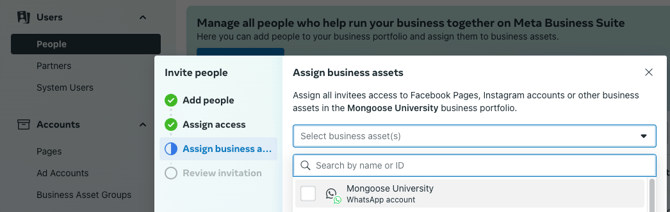
- Add additional Meta/Facebook users to the WhatsApp Account by clicking “People” and inviting a user.
- New users do not need an existing Meta/Facebook personal profile.
- Assign specific WhatsApp access levels limiting the user’s interaction with the rest of the Business Portfolio.
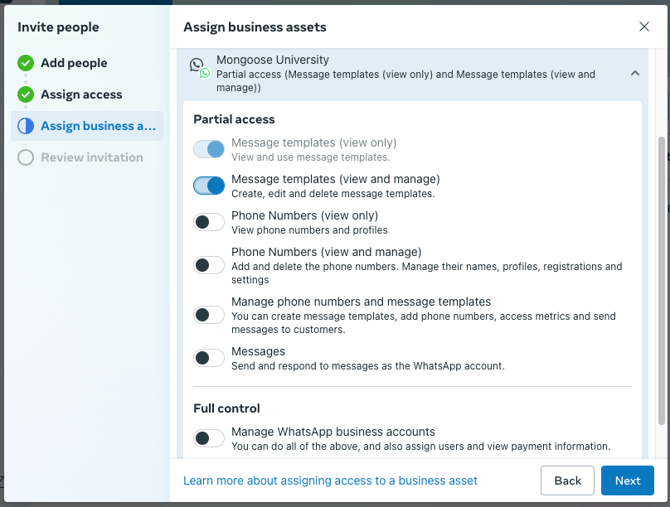
We recommend granting “view and manage” template access to Users/Admins who will maintain WhatsApp templates.
Note: This does not provide access to Facebook Pages or other Business Portfolio settings.